
Embedded Javascript Guide
Instructions for adding the embedded UI element into Client onboarding for credential collection
In order to add the UI element into the Client User onboarding, the following javascript must be embedded with a Customer Client UUID passed to associate the collected credentials with the appropriate user/company.
If you would like to own the full end-to-end UX experience for Client Credential collection, then utilize the Headless Credential APIs from PortalDuct to build your custom user experience.
UI Element Example:
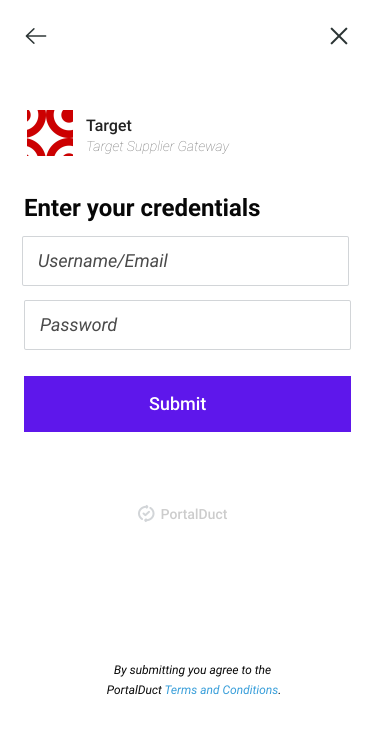
Javascript Insert
<!DOCTYPE html>
<html lang="en">
  <head>
    <meta charset="utf-8" />
    <meta name="viewport" content="width=device-width, initial-scale=1.0" />
    <title>My JavaScript App</title>
  </head>
  <body>
    <div id="root"></div>
    <div
      id="portalDuct-client-widget"
      style="
        box-sizing: border-box;
        padding: 0;
        margin: 0;
        display: flex;
        justify-content: center;
        align-items: center;
      "
    >
      <button
        id="start-funding"
        onclick="openPopup()"
        style="
          cursor: pointer;
          font-weight: 600;
          padding: 0.25rem 1.25rem;
          --bg-opacity: 1;
          background-color: #095540;
          --text-opacity: 1;
          color: #fff;
          color: rgba(255, 255, 255, var(--text-opacity));
        "
      >
        Add PortulDuct Connection
      </button>
       <script
        src="https://sdk.portalduct.com/js/portalDuct-client.js"
        async
        defer
      ></script>
      <script>
        function openPopup() {
          PortalDuct.load({
            elementId: 'portalDuct-client-widget',
            authToken: '...'
            uniqueId: '...',
            clientUUID: '...',
          })
        }
      </script>
    </div>
  </body>
</html>Updated 7 months ago